
Action services and integrations
Connect a service, prepare an action from a meeting, and review exactly what will be sent and where it will go.
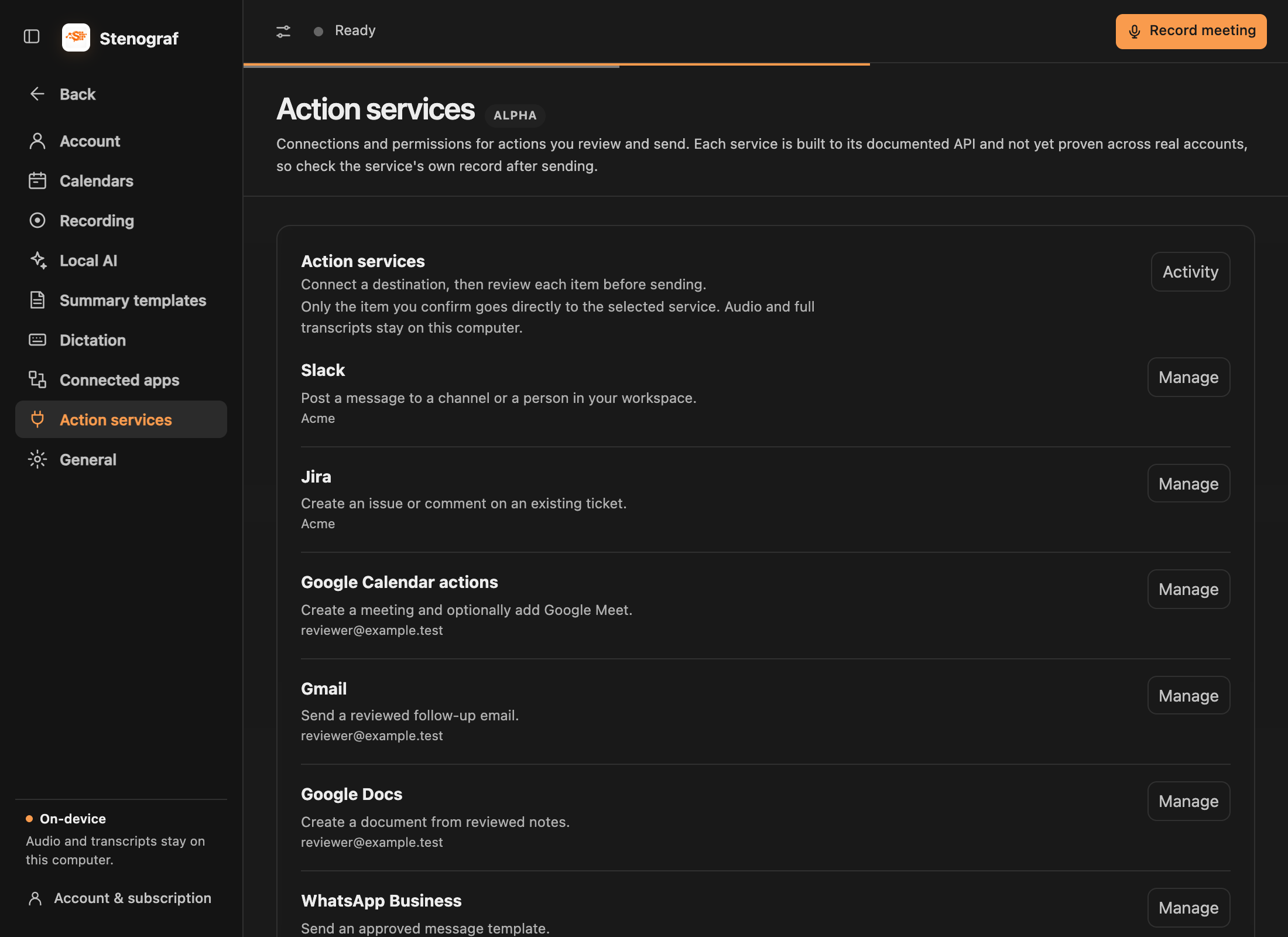
Choose the right Settings page
- Connected apps brings meetings in from Granola, Otter and Fireflies and contains phone-link, browser and local assistant connections.
- Calendars provides upcoming meetings and recording reminders.
- Action services connects the apps that receive reviewed messages, documents, tasks and events.
Available service actions
| Service | What you can prepare |
|---|---|
| Slack | A message to a channel or person |
| Microsoft Teams | A channel or chat message |
| Google Chat | A message to a space |
| Jira | A new issue or a comment on an existing issue |
| Google Calendar | A meeting, optionally with Google Meet |
| Gmail | A follow-up email |
| Google Docs | A new document |
| HubSpot and Salesforce | A task or note on an existing CRM record |
| WhatsApp Business | An approved message template |
| Telegram | A bot message |
Connect and enable a service
Open Settings → Action services and choose a service. Follow its setup instructions: some use browser authorization, others need a bot token, webhook or administrator-provided credentials. Turn on its action permission when you want to use it. Your organization may need to approve the connection.
Slack and Jira open their provider sign-in pages. Google services request permissions for the action you choose. WhatsApp Business requires a business account and approved templates, rather than a personal WhatsApp login. The service row explains the required account details.
Review and send
- Open the prepared item in Follow-ups and check its source passages.
- Choose Review service action. If setup is missing, connect the service in Settings first.
- Select the destination and edit the outgoing content, including recipients, issue details or event attendees where applicable.
- Review the complete item, then choose Confirm and send or Confirm and create.
Permission to use a service does not authorize every future send. The host submits the confirmed item directly to that provider using the connection stored on your device. Read the privacy policy for the export details.
Check the outcome
The item shows what the provider returned, such as Sent, Created or Rejected, and opens the created object when a link is available. Settings → Action services → Activity keeps the send history. If a result is uncertain, check the provider before sending again. A successful send stays in history rather than remaining a pending review.
For meeting questions and editable summaries, see After the meeting. For incoming transcripts, see Moving from another notetaker.