
Dictation
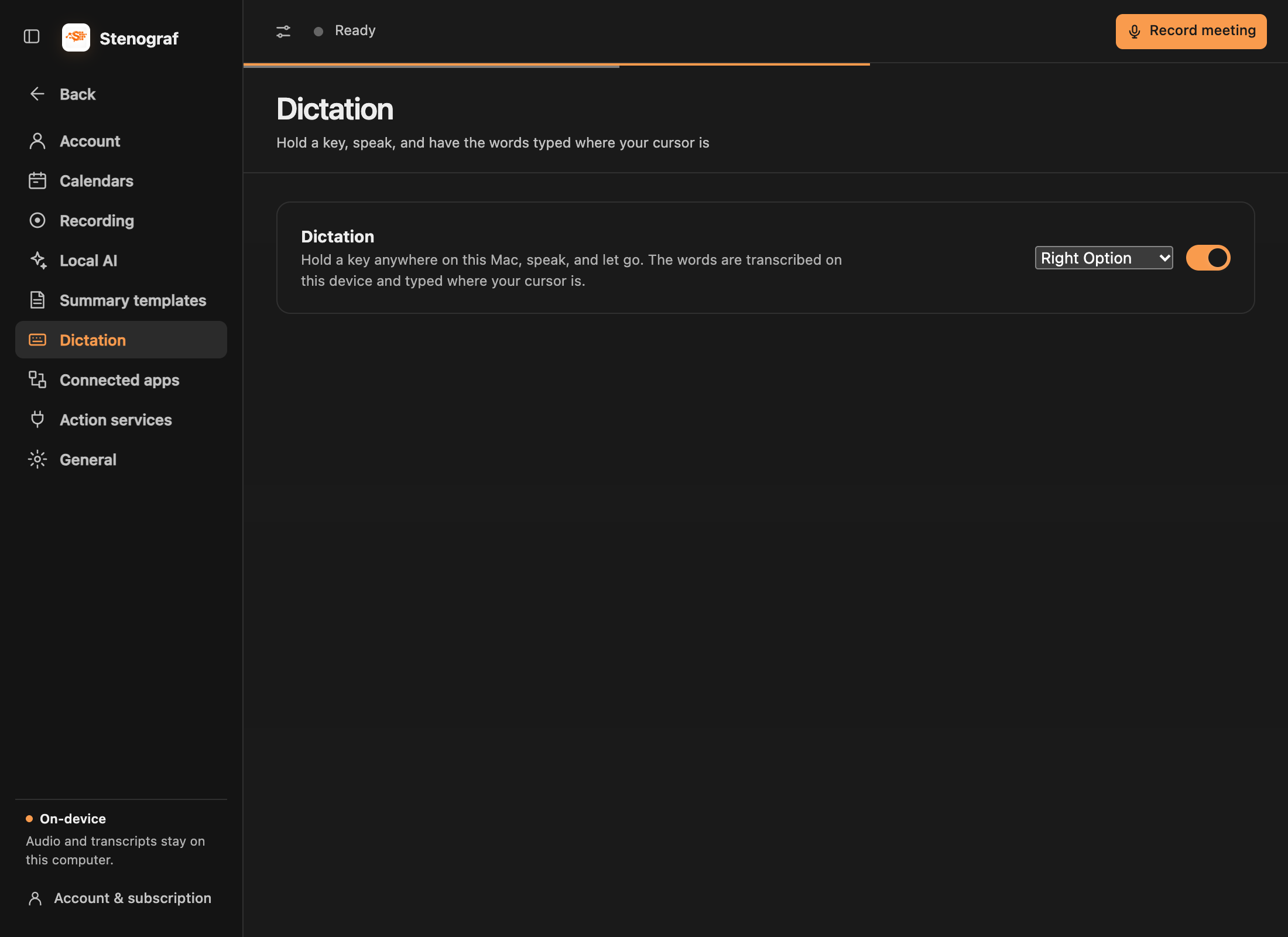
Hold a key anywhere on this Mac, speak, and let go. The words are transcribed on this device and typed where your cursor is.
Turn it on
Open Settings → Dictation, turn it on, and choose the key to hold. macOS asks for two permissions: Input Monitoring, so Stenograf can see the key, and Accessibility, so it can type the result. If one is missing, Stenograf says which.
Use it
Put the cursor where the text should go, hold the key and speak. A small panel shows the words forming while you hold it and gets out of the way when you let go. If Stenograf cannot type into the app you are using, the words are left on the clipboard, so you never lose what you said.
Nothing about the screen or what you said leaves your Mac. Dictation is available on macOS and needs an active Stenograf plan.