
Recording
What Stenograf hears, how it tells voices apart, and how to record a meeting you missed.
Your microphone
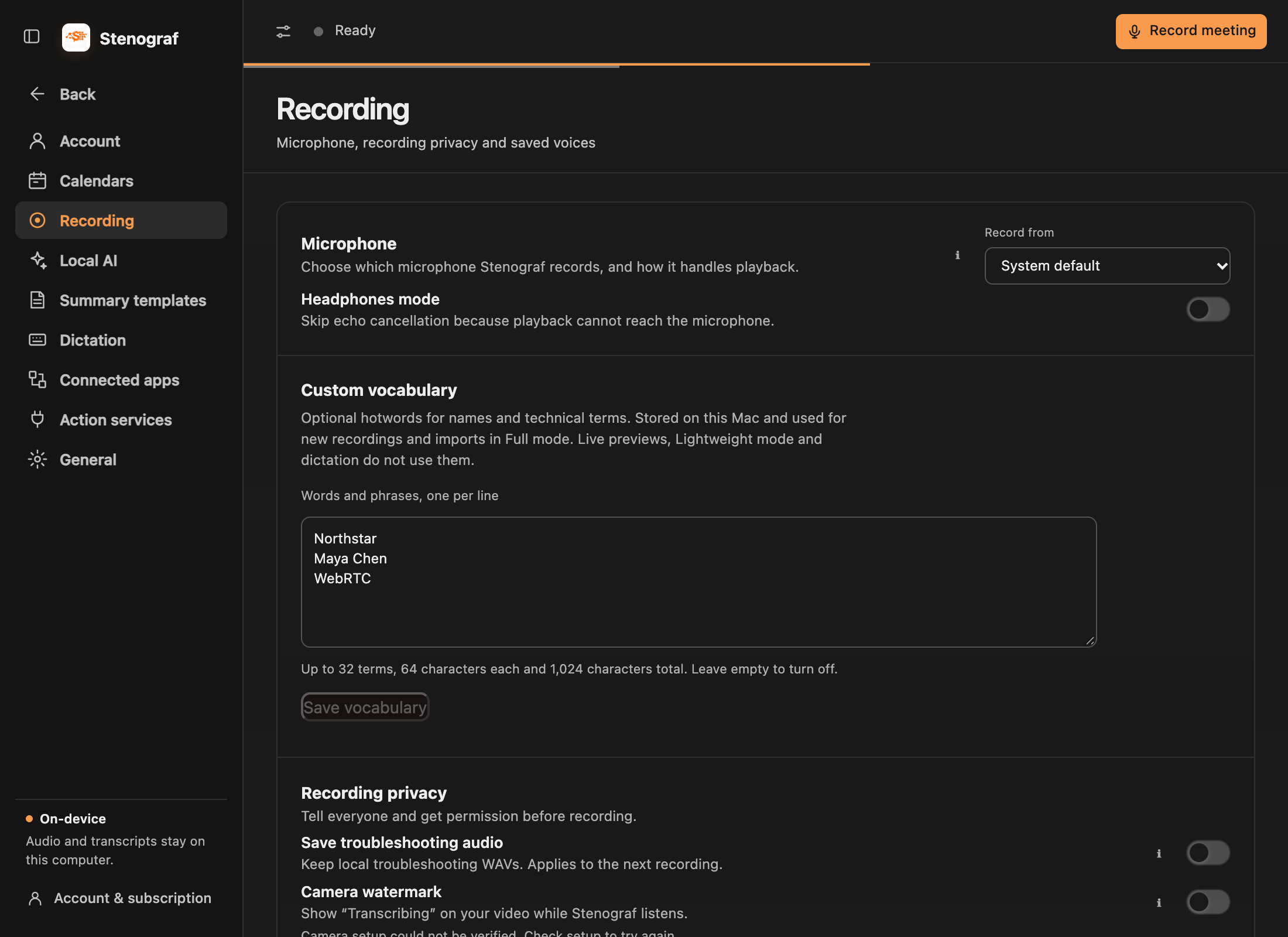
Computer audio is taken from the apps that are playing, so there is nothing to choose for it. Choose the microphone in Settings → Recording → Microphone. The choice applies to the next recording. If the microphone you chose is unplugged, Stenograf stops and says so rather than quietly recording another one.
Turn on Headphones mode when your speakers cannot reach your microphone. It switches off echo cancellation, which is only needed when the call plays out loud.
Speakers and names
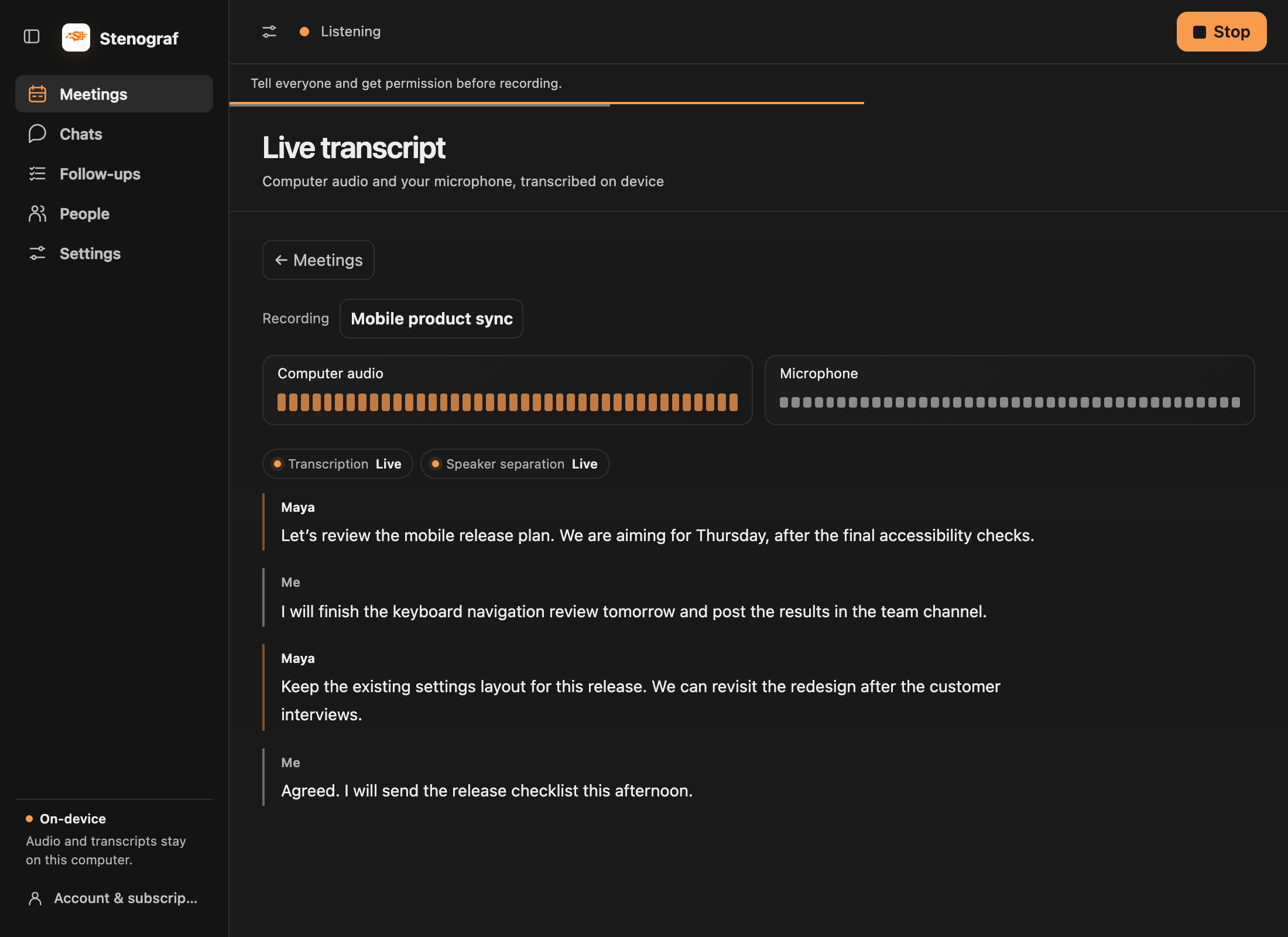
Your microphone is always Me. Other voices get numbers until you name them: choose Name speaker while recording, and Stenograf saves that voice on this computer and recognises it in later recordings. Renaming a speaker in Meetings changes only that recording.
When Stenograf is not sure whose voice a line is, it leaves the line unlabelled rather than guess. A missing name is deliberate; a wrong one would be worse.
Custom vocabulary (hotwords)
On macOS, open Settings → Recording → Custom vocabulary to add names, product names or technical phrases, one per line. Choose Save vocabulary. These are optional hints for Full transcription; they do not guarantee a spelling or replace words after transcription.
The vocabulary stays on this Mac and applies to the next recording or audio import, including recordings received from your phone. Saving during a recording does not change that recording or rewrite existing transcripts. Live previews, Lightweight mode and dictation do not use these hints.
You can save up to 32 terms, with 64 characters per term and 1024 characters in total. Clear the list and save to turn hints off. Custom vocabulary is not currently available on Windows.
Meeting reminders
Connect Google Calendar, Outlook Calendar or, on a Mac, the Calendar app in Settings → Calendars, and Stenograf reminds you as an online meeting starts, with Join & Listen to open it and start recording in one click. Nothing starts without that click. The recording keeps the meeting’s title and attendees, which later helps chat find it. The Calendars guide has the rest.
Import a recording
Missed recording a meeting? In Meetings, choose Import audio and pick the file. It goes through the same transcription and speaker recognition as a live recording and is dated by the file. Importing audio is on macOS for now.
Bring meetings from another tool
Connect Granola, Otter.ai or Fireflies.ai in Settings → Connected apps to import accessible transcripts. For Zoom or another audio recording, use Meetings → Import audio on macOS. The moving guides explain each route and its limits.
Recording responsibly
By default Stenograf keeps no audio: it transcribes in memory and saves only the text. Save troubleshooting audio, under Settings → Recording → Recording privacy, keeps local audio files for 24 hours when you need them to report a problem.